When you live apart, the next visit is the thing you both hold on to. A countdown on the home screen turns that date into something you see every time you pick up your phone, and when it's the same countdown on both phones, it stops being your private number and becomes a shared one.
This guide covers what a shared countdown widget needs to do, the ways people usually try to set one up, and a step-by-step for doing it with Till. If you're looking for things to count down to, or ways to fill the days in between, start with our long distance countdown ideas.
What makes a countdown widget work for two
Most countdown apps were built for one person: you pick a date, you add a widget, done. That works until you want your partner to see the same thing. A countdown made for a couple needs a few extra things.
- One date, not two copies. If each of you creates your own countdown, the day you move the flight, one of you is counting to the wrong date. A shared countdown is a single record that both phones read.
- It updates on its own. Change the date or the title on one phone and the other widget follows, without anyone sending a screenshot.
- Both of you can edit it. Plans change on both ends of a long distance relationship.
- It reads at a glance. A widget is something you see for half a second while unlocking your phone. Big number, clear unit, no clutter.
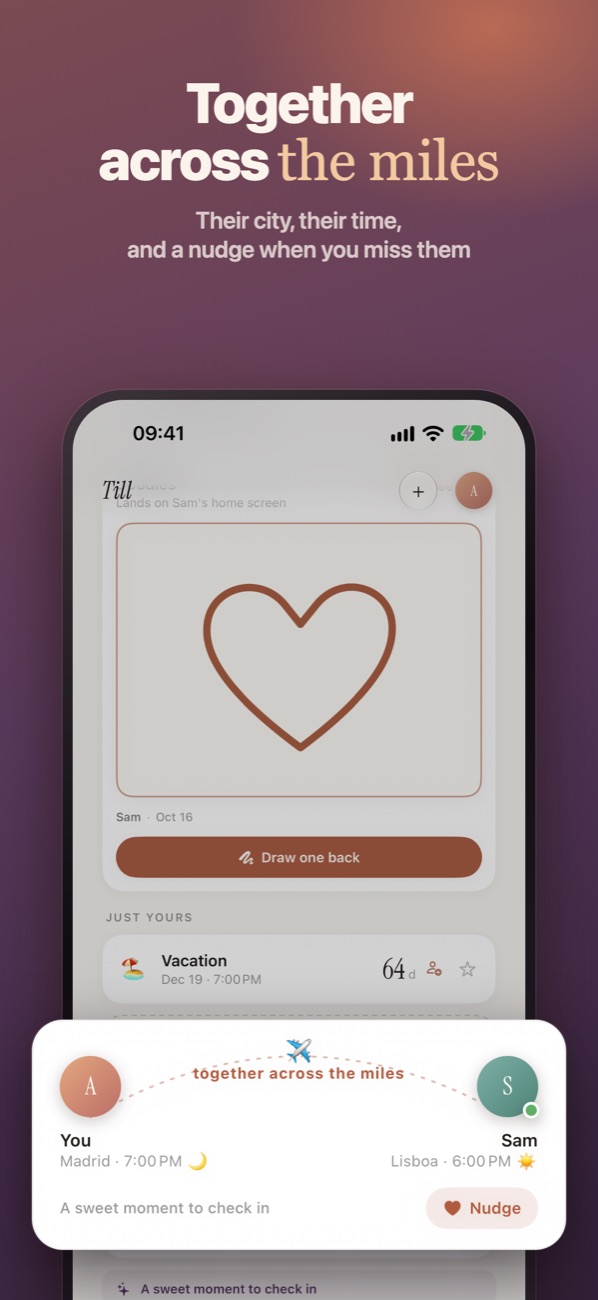
- It knows about the time difference. When you're in different time zones, it helps to see what time it is where they are before you text.
Ways to share a countdown, and where they fall short
Screenshots. Simple, and it works for a day. Then it's out of date, and it never makes it to the home screen.
A shared calendar event plus a generic countdown widget. Better: the date lives in one place. But most widget apps read a date you type into them, not the shared event, so you're back to two copies the moment the plan changes.
Each person installs the same countdown app. Same as two copies. It looks shared because the design matches, but nothing connects the two phones.
An app built for two. The countdown lives on a server that both phones read from, so an edit on one phone shows up on the other. This is what Till does, and the rest of this guide shows it step by step.
One honest limit: Till is for iPhone (and iPad). If one of you uses Android, a shared calendar event is the most reliable way to keep one date for both of you.
How to put the same countdown on both iPhones
You'll need Till on both phones (iOS 17 or later). It takes about five minutes, and you don't have to create an account with an email or a password.
1. Create the countdown
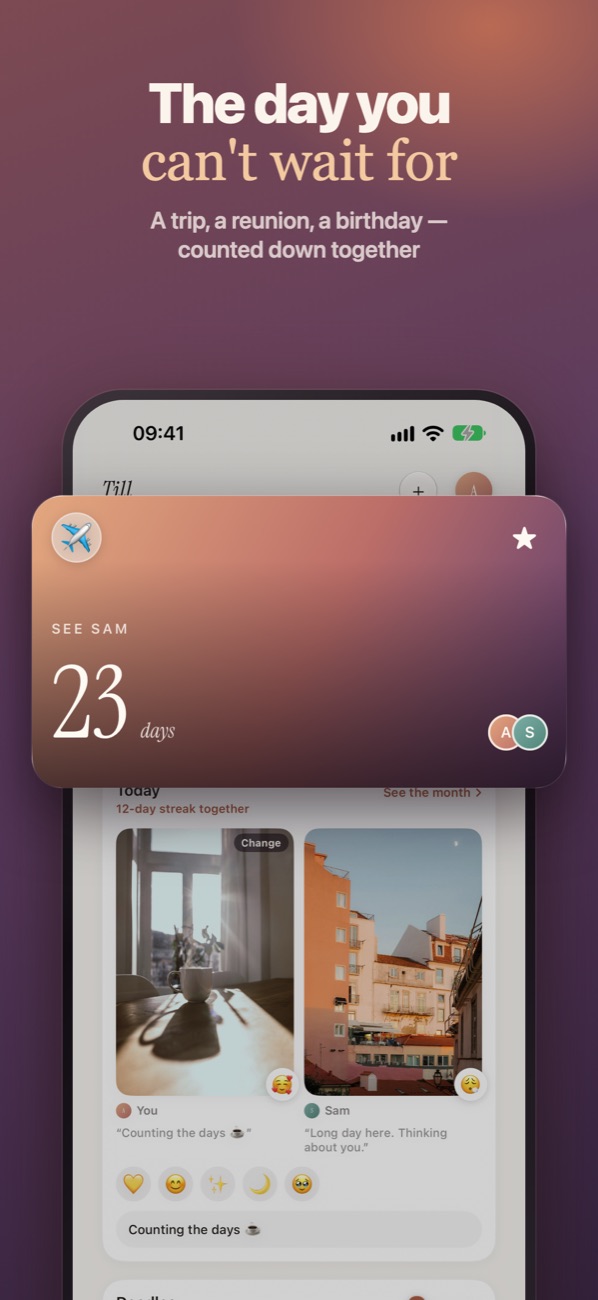
Open Till, tap + and give the countdown a name and a date, like "See Sam" on the day the flight lands. Pick an emoji or a photo, and the widget style: photo, flip clock or editorial. The style is part of the countdown, so the widget looks the way you chose in the app.
2. Pair with your person
Tap Invite. Till gives you three ways to connect, and any one of them is enough:
- a 6-digit code your partner types into Till,
- a link you send in your usual chat (tapping it opens Till),
- or Nearby: when you're together, hold the two iPhones close and they find each other.
On the other phone, your partner taps I have a code and enters it. The moment they accept, the countdown is on both phones. If you already paired before, open the countdown and choose Share with your person.
3. Add the widget to each home screen
iOS doesn't let any app place a widget for you, so each of you does this once:
- Touch and hold an empty spot on the home screen.
- Tap the + in the corner.
- Search for Till and add Till — Countdown.
If you have more than one countdown, touch and hold the widget, tap Edit Widget and pick which one it shows. There's also a Lock Screen widget, so the number is there before you even unlock.
4. Change the plan from either phone
Flight moved? Either of you edits the date, and both widgets follow. Dates that come back every year, like an anniversary or a birthday, keep counting on their own after the day passes.
Make it more than a number
A countdown is the long view. The days in between still need something small and daily, and that's where most long distance couples feel the gap. A few habits that help:
- One photo a day each. Not a perfect one. The coffee, the bus, the sky. It's the closest thing to sharing a day when you can't.
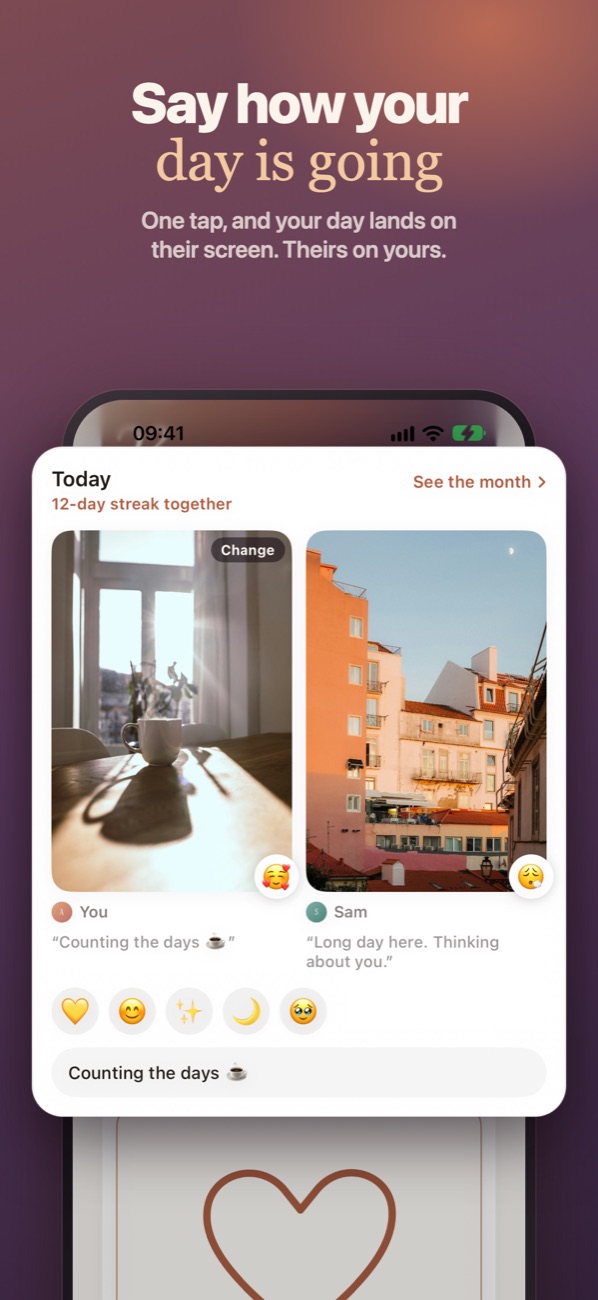
- Say how your day is going before they ask. A one-tap mood saves a lot of "how was your day?" "fine".
- Plan the reunion together. Writing down what you'll do on the first day makes the countdown feel like it's leading somewhere.
- Leave a surprise for the last day. A note that only opens when the countdown hits zero.
Frequently asked questions
Can two people share one countdown widget on iPhone?
Yes, if the app keeps the countdown in one place that both phones read. With Till, one of you creates the countdown and invites the other with a code, a link or by holding the phones together. Each of you then adds the Till widget to your own home screen, and both show the same number.
Is there a long distance countdown app for two?
Yes. Till is made for two people waiting for the same day. You pair once, and the countdown, the daily check-in, doodles and nudges work between your two iPhones.
Does the countdown widget work on the Lock Screen?
Yes. Till has a Lock Screen widget as well as the home screen ones (photo, flip clock and editorial).
Does it work if my partner has Android?
No. Till is for iPhone and iPad, on iOS 17 or later. If one of you is on Android, a shared calendar event is the simplest way to keep the same date on both phones.
What happens when the countdown reaches zero?
You've made it. If you scheduled a surprise for that day, it opens. For a date that repeats every year, the countdown starts again for the next one.
Till: one countdown, live on both home screens
Till was made for two people waiting for the same day. You pair once, and from then on the countdown sits on both home screens, updating together.
- Widgets in three styles (photo, flip clock, editorial), plus one for the Lock Screen.
- Their city and their time, and the distance between you.
- A daily check-in: today's photo from each of you and a one-tap mood.
- Doodles that land on their home screen, and a nudge for when you miss them.
- Plan the day together, and schedule a surprise (a note, and a photo if you want) that only opens on the date you pick.